
If you have searched and landed here, it’s because you are looking to create a new website and want to know what’s best. Web accessibility is not something a lot of these website builders have traditionally done well, but they’re getting better as laws get tougher. Whether you are deciding Wix vs. Showit or looking at many of the other options out there (including AI), you need to understand what you’re looking for first.
Before we dig in, just know that while we personally do not use any of these builders to create new websites, we know that budget may keep you to tools like these. That doesn’t change my goal: to help increase the number of accessible websites online (it’s currently just 4%).
Let’s take a look at all of the different popular website builders and see where they stack up on accessibility.
Table of Contents
You Need to Own Your Website
Your website is the foundation of your marketing strategy. Everything you do – ads, social media, emails, content – leads back to your website. It’s where people make purchases, fill out contact forms, or grab your newest lead capture. You cannot take a risk where you do not own it or your content. And that content needs to be accessible to everyone.
What does this have to do with website builders? For one, options like Wix, Squarespace, or Showit can update their terms and conditions at any time. Years ago, they claimed ownership of anything you created on their platforms. While that has changed and they acknowledge your copyright, they also act as your hosting company. That means if you don’t like the customer service, you have to completely redo your website to move it.
It also means that if any of these companies go out of business, your website goes with it.
What About AI Websites?
This is where AI feels better for some. It can build a website that lives anywhere, and maybe even on a cheaper hosting platform. That sounds great, right?
There’s a massive problem with AI-generated websites: you cannot copyright AI-generated content. The US government acknowledges that work with “sufficient human authorship” can still be copyrighted, but if AI created most of it, you do not own it. While many businesses are taking risks, you don’t want to get caught not fully owning your website. This could mean someone duplicates your entire website, throws their name on it, and you have no legal recourse. (Fun fact: most people think all AI websites look the same anyway.)
What an Accessible Website Needs
Not all website builders write the same code. They can create a decent-looking website, but it may not be fully accessible. Other things depend on the person creating the website to ensure they follow WCAG rules and accessibility best practices.
Any website builder needs to:
- Use semantic HTML
- Add a Skip to Content link
- Add the website’s language
- Allow for page titles and descriptions
- Use proper URLs
- Provide space for ALT text
- Allow you to select heading sizes
- Avoid persistent animations (like marquees) or provide controls
- Use responsive web development
- Offer keyboard-only navigation
This isn’t a comprehensive list, but these basics make a huge difference in whether a website can be accessible. If these aren’t available on the platform itself, you will struggle to get your website anywhere near WCAG standards.
In the next few sections, we’re going to break down different platforms and whether or not they hit these items by default. If something is marked Some, it might mean it’s available but does not fully comply.
Wix
So you understand Wix may have some limitations, but how does it stack up on the web accessibility front? Better than it used to! Let’s take a look at some basic best practices and how they work on Wix.
| Accessibility Best Practices | Complies |
|---|
A Note on Semantic HTML
While Wix uses decent semantic HTML overall, the code it creates when you add text styling can cause issues when you use a screen reader.
For example, in this screenshot, you can see multiple tags adding roughly the same styling in the middle of a paragraph (which is incorrectly marked as an H2). A screen reader breaks this up, adds pauses, and even declares level 1 (for a heading 1) multiple times within it.
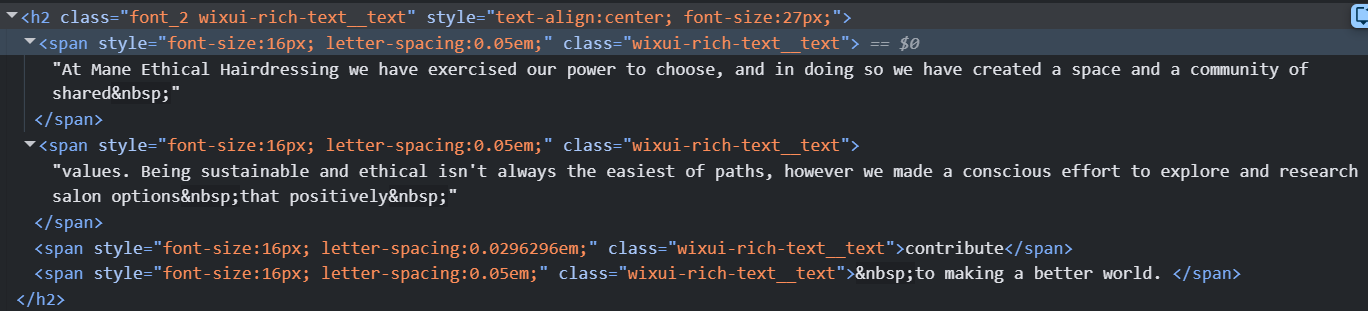
This is almost definitely user error, but it is all too easy to do in an editor like Wix.
Responsive vs. Adaptive Web Design
Most of your customers are going to reach your website on a mobile device. For years, the industry standard has been to create one website with one set of content that responds to screen size. Before this became standard, we would create two websites – one for mobile and one for desktop. This was called adaptive design. Wix is oddly proud of its adaptive approach, claiming that there’s “no real winner in terms of technique.”
There is. It’s responsive, and it hasn’t been an argument since around 2014.
Not only does Google prefer that your mobile and desktop versions of your website are exactly the same, but some adaptive techniques mean your content is listed on your website twice. Wix at least does not do this and passes the screen reader test, but you still have to make edits twice every single time you make changes. It may also not work well on new, slightly odd screen sizes like Samsung’s Folds or the Apple Duo. Many adaptive designs focus on smaller phones, leaving tablet versions looking pretty wonky.
Can Wix Be Accessible
Surprisingly, Wix may have some of the best built-in accessibility features among website builders. While I would still say no to its adaptive design choices, Wix Studio uses responsive principles.
Showit
Showit was built for photographers and has expanded to be pretty popular with small business owners. What makes it unique is that it’s also built on WordPress. That doesn’t mean it does everything perfectly, though. In fact, for accessibility purposes, it scores pretty low.
Selecting Semantic HTML Tags
Something that puts Showit behind Wix? You have to manually select the semantic HTML tags. They did finally start adding them back in 2025, but if you have a web designer or even a marketing coordinator creating pages, they may not know they need to take an extra second or two to get the tags right. The overall page structure is missing any semantic HTML by default.
It also has the same text-formatting issues as Wix, where extra tags and bloat can cause problems.
Showit also orders your content however you drop it in, not the actual hierarchy. That means a website built in Showit can be nearly impossible to navigate by keyboard and can be read completely out of order by a screen reader.
To prove my point, let’s look at this example. The first heading, “You want freedom,” will get read after the third heading, “I get it, I’ve been there, too.” The second heading, “But right now” gets read after both the third and first.
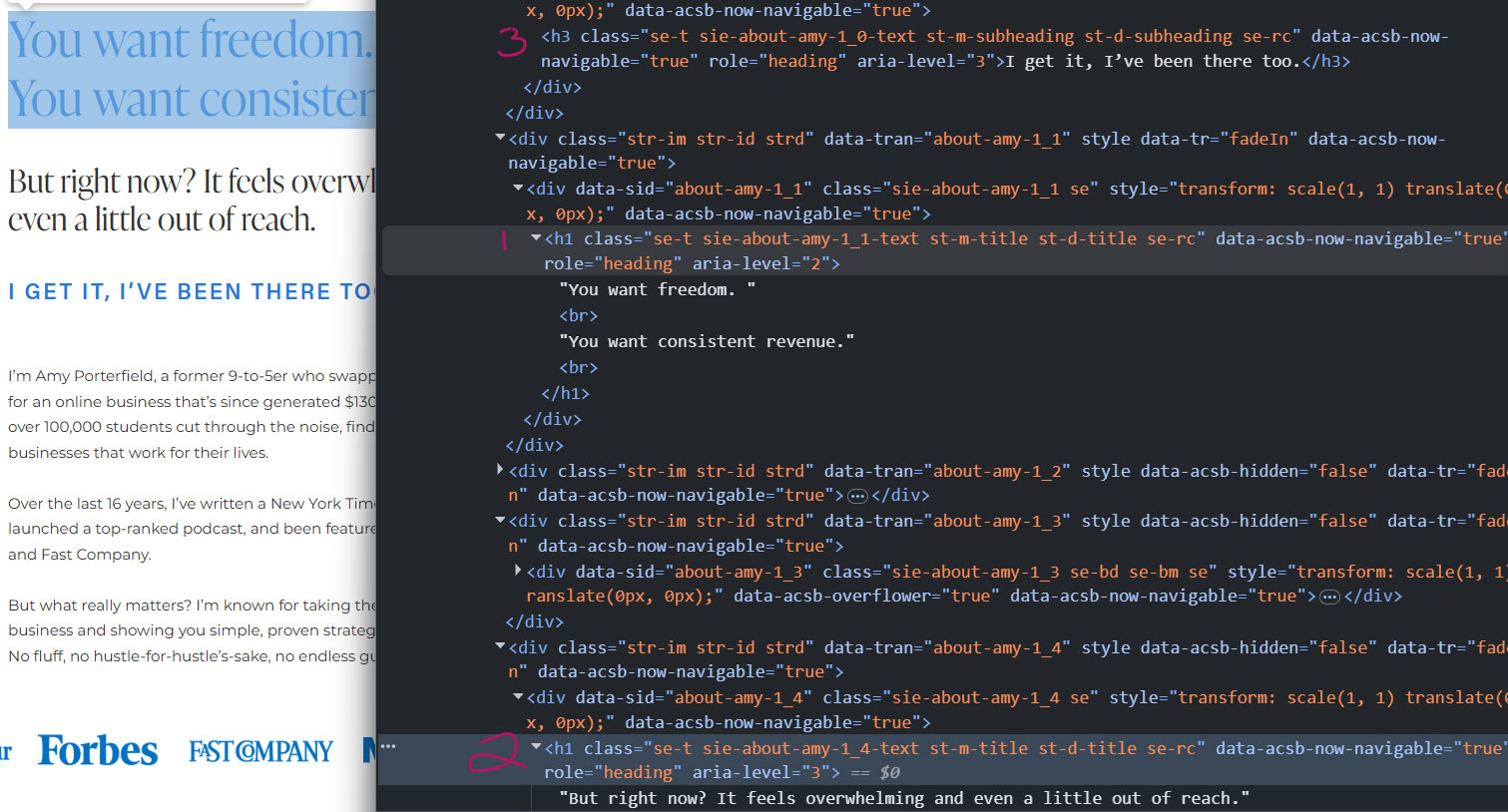
Anyone reading this site using assistive tools is going to get a very different message.
Can Showit Be Accessible?
In my experience, even the biggest Showit website designers don’t follow basic accessibility best practices. A huge part of Showit is grabbing a template from someone else and trying to spin up a fast website. But even if they build it right, your code can quickly get out of order once you start editing. Unless you want to spend a lot of time deleting, re-adding elements, and manually making a lot of selections, I would not recommend Showit yet.
Squarespace
While I have been open that Squarespace does many things better than Wix, it’s actually a bit behind on accessibility.
Here’s how it stacks up on our best practices:
Squarespace Semantic HTML is Out of Order
One thing that really stuck out to me while testing some of Squarespace’s showcase websites? It uses semantic HTML-ish to structure the overall page, but several blocks were out of order within sections. This means not only does your keyboard navigation go out of order, but so will screen readers. It’s the same thing that happens in Showit: when you drag a piece into the editor, the HTML it creates follows the order you added it in, not the logical order.
Animations Need to Be Pausable
One thing that impressed me about Wix? Most of their documentation says they force play/pause controls on their animated elements, including scrolling text marquees. But looking at a few Squarespace showcase websites, they obviously make this optional.
To meet WCAG, all animations must be pausable, stay below 3 flashes per second, and respond to prefers-reduced-motion settings. If your website has a bunch of flashing videos all over its homepage, that I cannot pause, you can cause some users to have physical responses like seizures.
Can Squarespace Be Accessible?
You will need to watch how you add content in the editor and your HTML ordering, but it does a much better job than Showit. As a user, you will need more WCAG knowledge to ensure you are following animation rules, especially.
AI-Generated Websites
Because AI-generated websites can be built with a variety of tools, this is harder to pin down. For this review, I’m focusing on websites built with one of the most popular tools, Lovable.
Semantic HTML Needs Input
A few of the websites I looked at on Lovable did a great job with their overall page structure. Others had some, but were missing <header>, <main>, or <footer> tags to provide the information assistive tools need. Some sites had Skip to Content links; others did not. Overall, content was actually in the right order.
Can AI Websites Be Accessible?
AI can be dangerous for accessibility because it often only generates what you ask for. If you do not know the WCAG rules, it will not necessarily know to give you a skip-to-content link, semantic HTML, or the right heading sizes. As you probably already know, what AI creates depends a lot on your prompt. While you can use tools like ChatGPT, Gemini, or Claude, you need to know which rules to follow and be able to check the results.
How to Build Accessible Websites
What tool is best for an accessible website? Well, I’ll always tell you that WordPress is the easiest to work with, but even that requires some basic understanding of how to make a website accessible. It’s not just a case of Wix vs. Showit or any other website builder. Understanding basic web accessibility best practices is key to getting any website to meet WCAG.
Even though Wix has some of the best built-in accessibility tools, you still need to know how to use them. The most common issues I saw, no matter the website builder, were poor color contrast, missing ALT text, and poor heading structure. You, the user, are introducing all of those errors into your own website.
You do not need to learn all of the WCAG rules to do a better job. You do need to understand basic best practices to ensure that regular website updates do not add roadblocks for some of your readers.
Want to learn those from an actual college professor who gets rave reviews for her online instruction? (Oh wait, that’s me!) Join the waitlist for Creating Accessible Content. This easy online course will teach you the core basics of web accessibility. You’ll learn how to add content without breaking compliance and ensure your content reaches everyone. No technical jargon. Just real-world examples and easy explanations, plus the exact process our team follows. Sign up now and be the first through the doors when we launch soon.